B2B Returns — RMA, Credit Memo & Versapay Refund
Step-by-step procedure for processing a B2B customer return with a VersaPay-collected invoice: unapply the deposit, issue the refund, create the RMA and credit memo, and reconcile.
Canonical source: ScaleNorth SOP series #12; this page is the internal mirror.
Related: Phone: Returns & Refunds — for DTC phone-based return flows.
Why this matters
When a B2B customer returns goods after paying via VersaPay, the money trail runs through four linked records: the Customer Deposit, the Deposit Application, the Invoice, and the Customer Refund. They must be unwound in the right order. Skip a step or edit the wrong record and the refund fails to route back to VersaPay, the invoice stays open, and the customer’s balance stays wrong.
Owner & roles
| Role | Responsibility |
|---|---|
| Finance / Senior Accountant | Steps C–F: all NetSuite and VersaPay entries |
| Lucyd Ops / Warehouse (Reuben Gillion) | Steps A, E: receive, inspect, log return condition |
| Joaquin (COO) | Approves refund amount when partial; escalations |
| Oswald (CFO) | Notified on refunds > $500; owns Virtual Terminal policy |
Scope — when to use this SOP
Use this SOP when all three are true:
- A B2B customer is returning goods from a fulfilled, invoiced order
- The original payment was processed through VersaPay (Customer Deposit with a VersaPay document number)
- A refund of any amount — full or partial — is being issued
For DTC returns (Shopify), use SOP 01. For wire/check payments (non-VersaPay), the unapply step is the same but the refund method differs — ask Oswald.
Prerequisites
Before starting:
- Confirmed VersaPay was the payment method (Customer Deposit has a VersaPay-style document number, e.g.,
648S4ZFGCMUI) - Posting period is open — check NetSuite Setup > Accounting > Accounting Periods before touching any record (closed periods block unapply and refund edits; see Gotcha G1)
- Refund amount approved — Joaquin decides if partial; default is full refund for full return
- You have the Sales Order number and Invoice number for this transaction (visible on the Customer record or via Transactions > Management > View Payment Events, filter Payment Processing Profile = VersaPay)
Sequence variants
There are two valid sequences. VersaPay support confirmed refund-first because it keeps the customer whole immediately and avoids delays waiting for goods. The receive-first sequence is used when all items arrive the same day the refund is decided. Either is correct — choose based on whether goods have arrived:
| Variant | When to use | Sequence |
|---|---|---|
| Refund-first | Goods not yet back; trust the customer or want to release funds immediately | A → C → D → B → E → F → G |
| Receive-first | Goods already in hand; condition verified before refund | A → B → E → C → D → F → G |
The Item Receipt (E) always requires the Return Authorization (B) to exist first. What moves is the refund pair (C unapply + D refund): before the RMA paperwork (refund-first) or after goods are received (receive-first).
Procedure
A. Receive & inspect return (Warehouse)
- When goods arrive at the warehouse, count and inspect all items against the original packing list.
- Log condition for each line item:
- Sealed / unopened — can return to sellable inventory
- Opened / customer-used — hold for Joaquin’s disposition decision before restocking
- Notify Joaquin and Finance via Slack (#ops or direct) with:
- Order/SO number
- Items received and condition breakdown
- Recommendation: full refund vs. partial
Example (Adolph Optical, June 2026): 12× LCD008-10 Armor received — 9 sealed, 3 opened. Decision: full refund $799 approved.
B. Create Return Authorization (RMA) in NetSuite
- In NetSuite, open the original Sales Order (e.g., SO598).
- Click Actions > Return Items (or navigate: Sales Orders > select SO > Actions > Authorize Return). NetSuite creates a Return Authorization linked to the SO.
- On the Return Authorization, confirm the line items and quantities being returned.
- Save the Return Authorization. Note the RA number — you’ll need it for Step E (Item Receipt).
Note: This step follows the standard NetSuite path for return authorizations.
C. Unapply the payment from the invoice
This is the most counterintuitive step. You cannot edit the Customer Deposit directly to unapply it — the deposit record is locked once applied. You must go through the invoice and edit the Deposit Application from there.
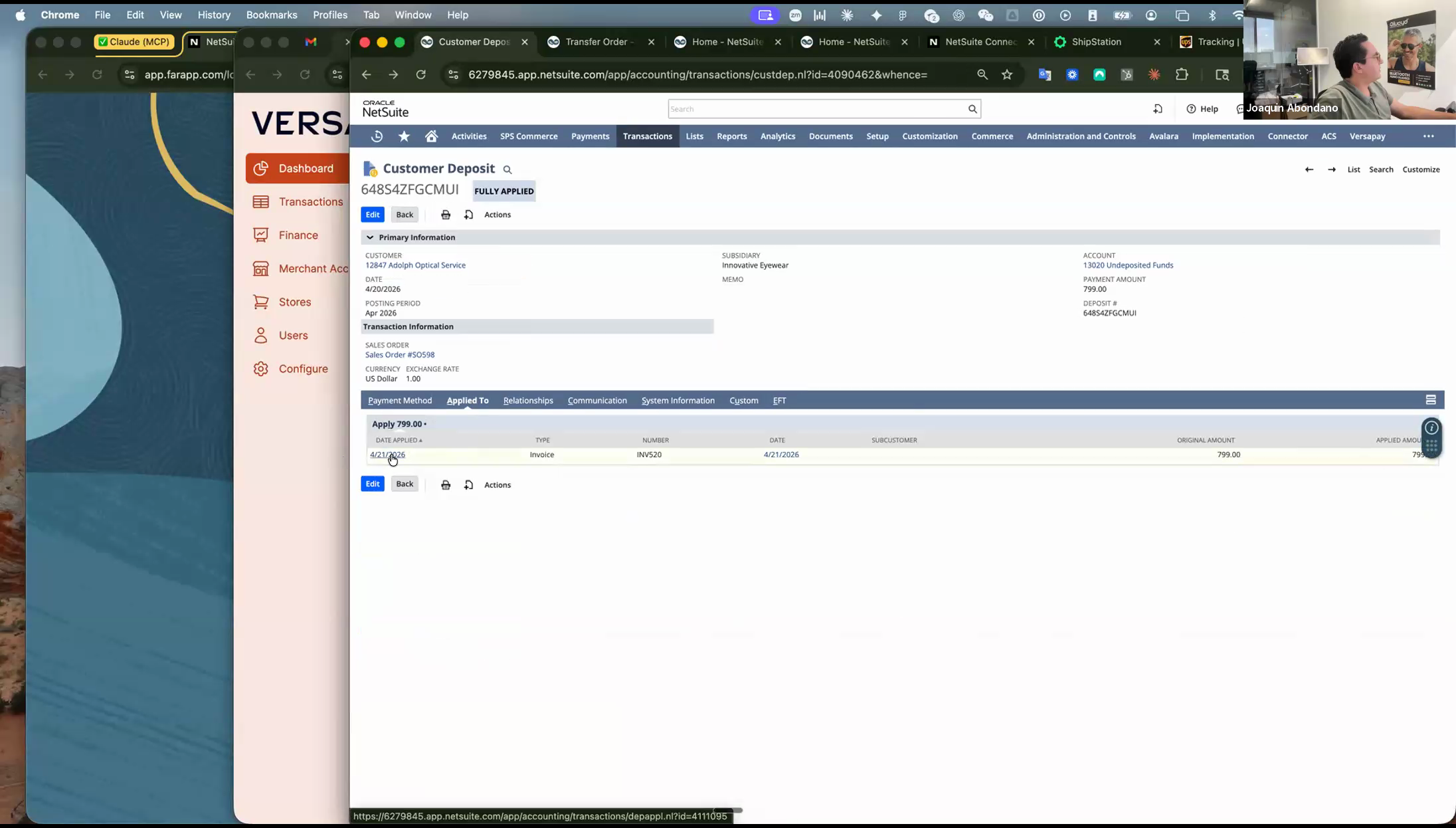 Customer Deposit showing FULLY APPLIED status. Navigating directly to the deposit record will not allow you to edit the applied amount. Go to the invoice instead.
Steps:
-
Open the Invoice (e.g., INV520) linked to the Sales Order.
-
On the invoice, locate the Deposit Application listed in the payment section (e.g., DEPA03).
-
Click the Deposit Application link to open it. Then click Edit.
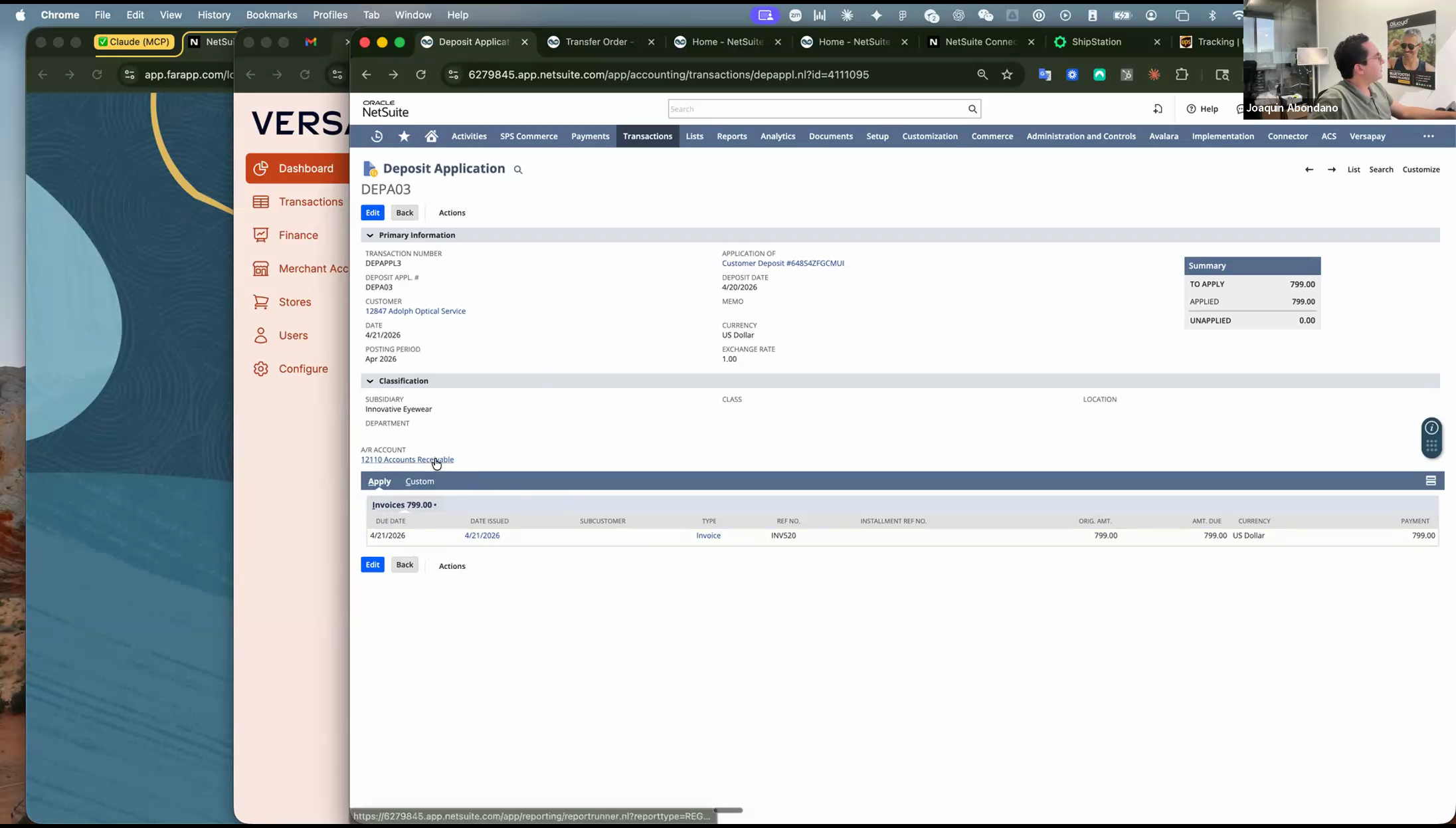 Deposit Application showing the amount applied to the invoice. Edit this record — do not try to navigate here directly from the Customer Deposit.
 -
In the Payment Information section, reduce the applied amount:
- Full refund: Set the applied amount to $0.00 (leave the full amount unapplied)
- Partial refund (e.g., $300 back, keep $499 applied): Reduce the applied amount by the refund amount only
-
Save. The invoice reopens with an open A/R balance equal to the unapplied amount. The Customer Deposit now shows that amount as unapplied.
Why this order matters: If you go to Transactions > Customers > Issue Customer Refund before unapplying, the Credits/Deposits section will show $0.00 and there is nothing to refund. Unapply must happen first.
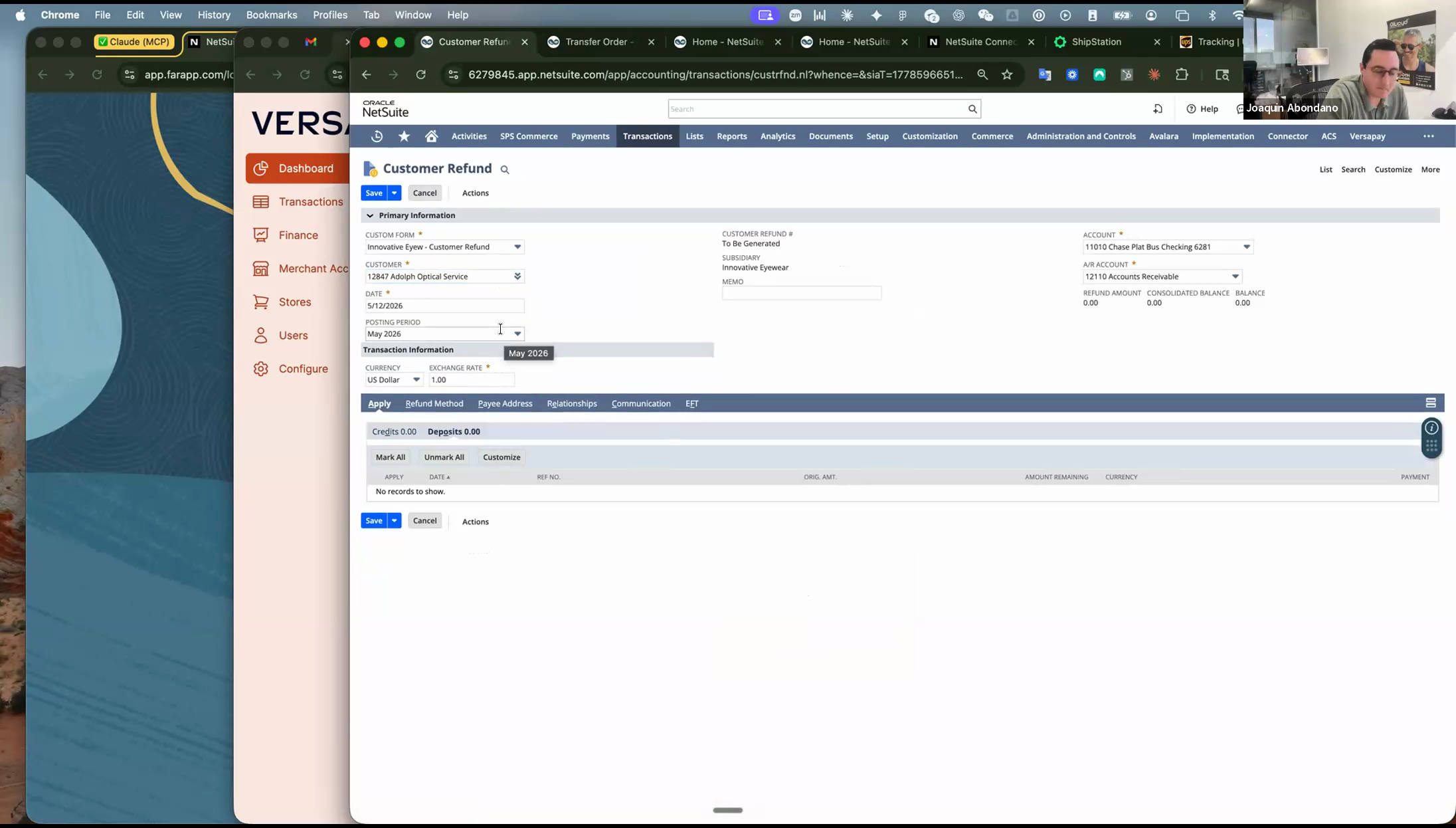 What the Customer Refund form looks like if you try to issue a refund before unapplying the deposit. The Apply tab shows nothing. Step C must happen first.
D. Issue Customer Refund via VersaPay
-
Navigate to Transactions > Customers > Issue Customer Refund (also accessible from the customer record: Actions > Issue Refund).
-
In the Customer field, select the customer name (e.g., Adolph Optical Service).
-
Go to the Apply tab. The unapplied deposit from Step C will now appear here as an available line item. Check the box to select it.
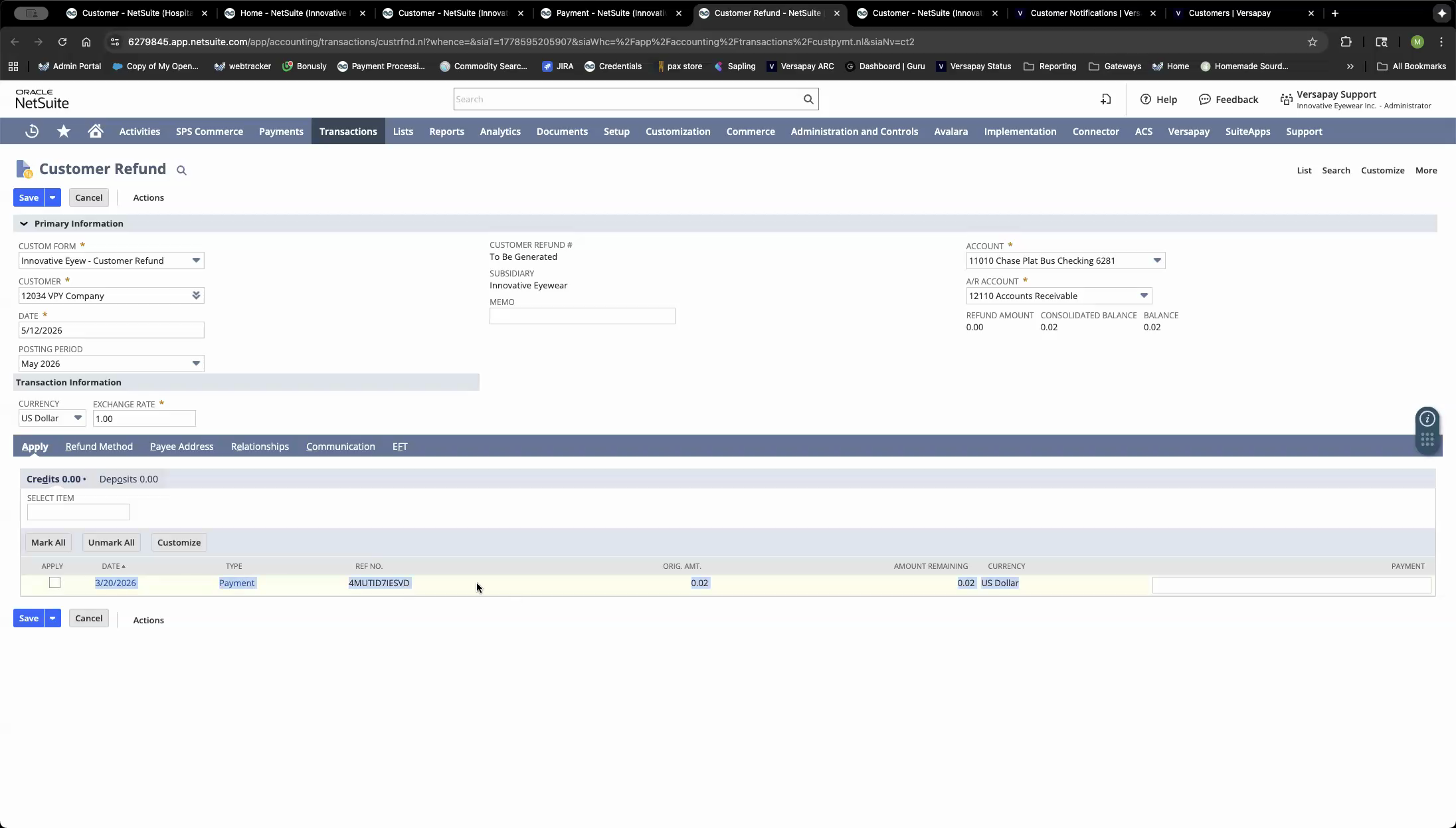 Apply tab on the Customer Refund form. After Step C (unapply), the deposit appears here. Select it — this is the amount that will be refunded.
 -
Go to the Refund Method tab. This is the critical screen — all three fields must be correct:
- Payment Option: Select “Pay by Reference” — instructs VersaPay to look up the original transaction by reference number and refund to the same payment instrument.
- PN / Reference Number: Auto-populates from the original transaction. Do not change it.
- Payment Processing Profile: Select VersaPay
- Handling Mode: Set to Process — triggers the live refund through VersaPay.
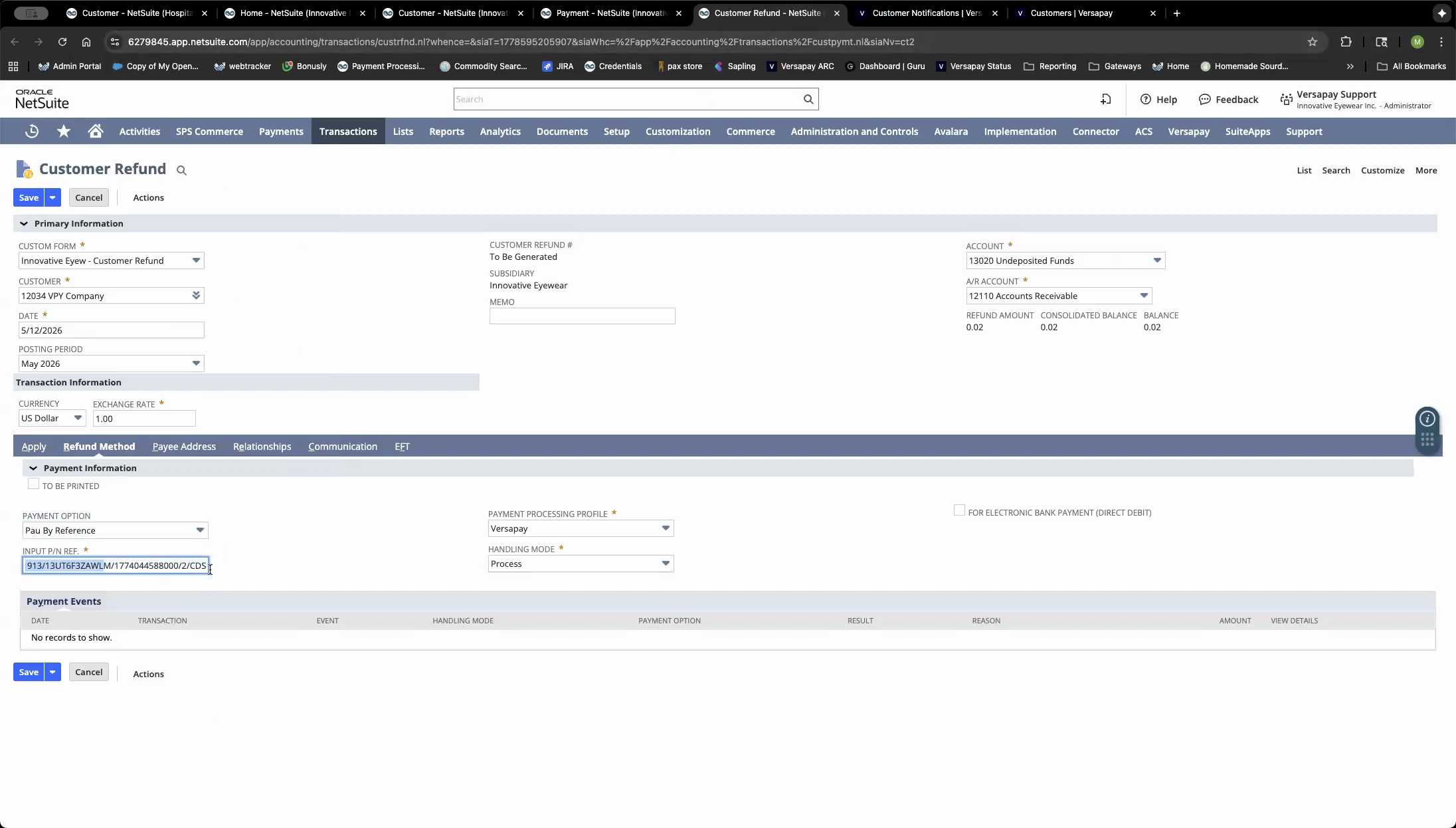 THE critical screen. Payment Option = Pay by Reference, Payment Processing Profile = VersaPay, Handling Mode = Process. All three must be correct. Saving triggers the VersaPay refund to the original card.
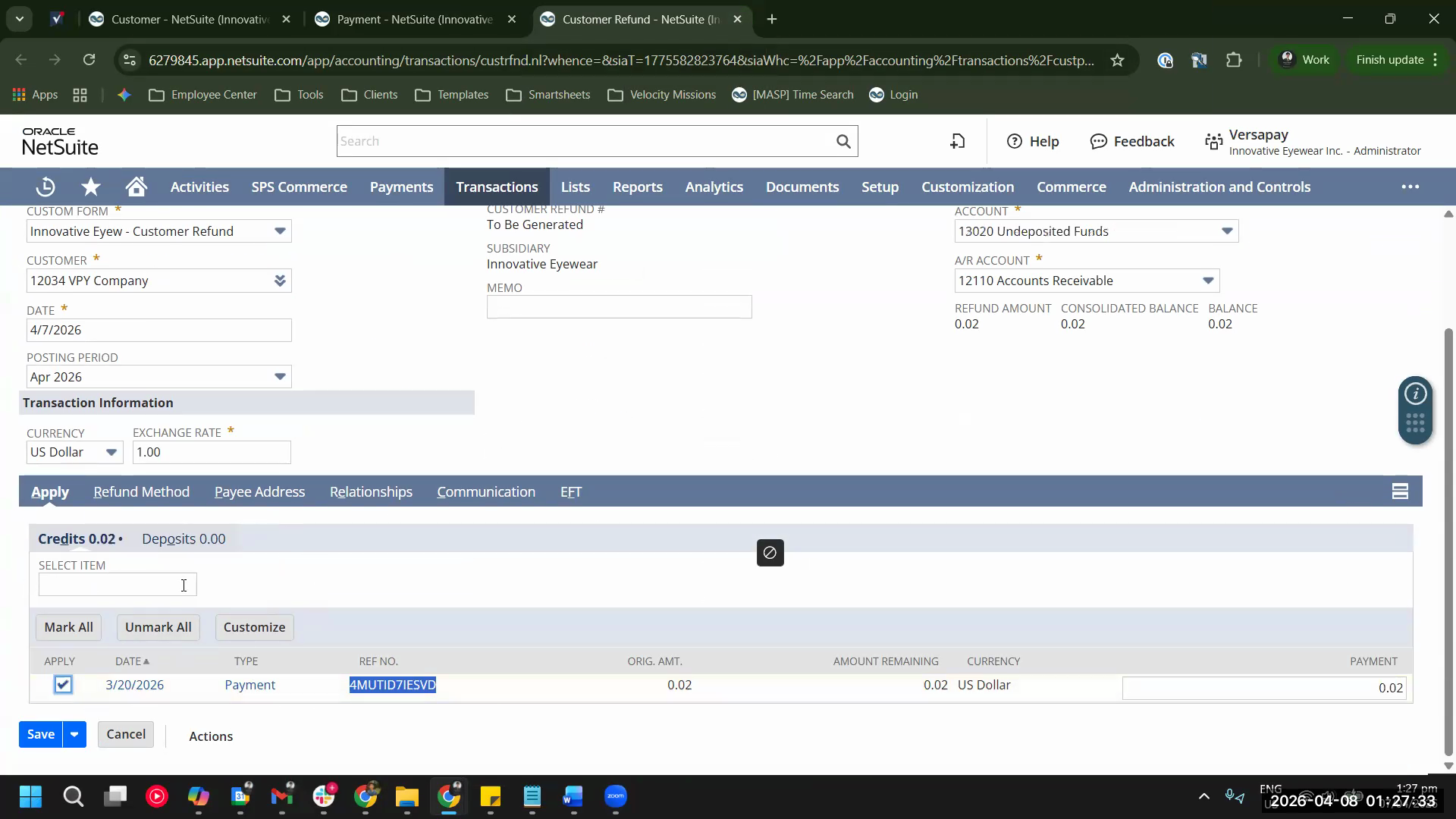 Full Customer Refund form showing the Apply and Refund Method tabs.
 -
Save. VersaPay receives the refund instruction and routes the funds back to the original payment instrument.
Safeguard: Even if you select the wrong payment option in the Refund Method tab, VersaPay always returns the refund to the original payment method. This is a backstop, not a replacement for correct entry — still use Pay by Reference.
Timeline: Card refunds take approximately 3–5 business days to appear on the customer’s statement.
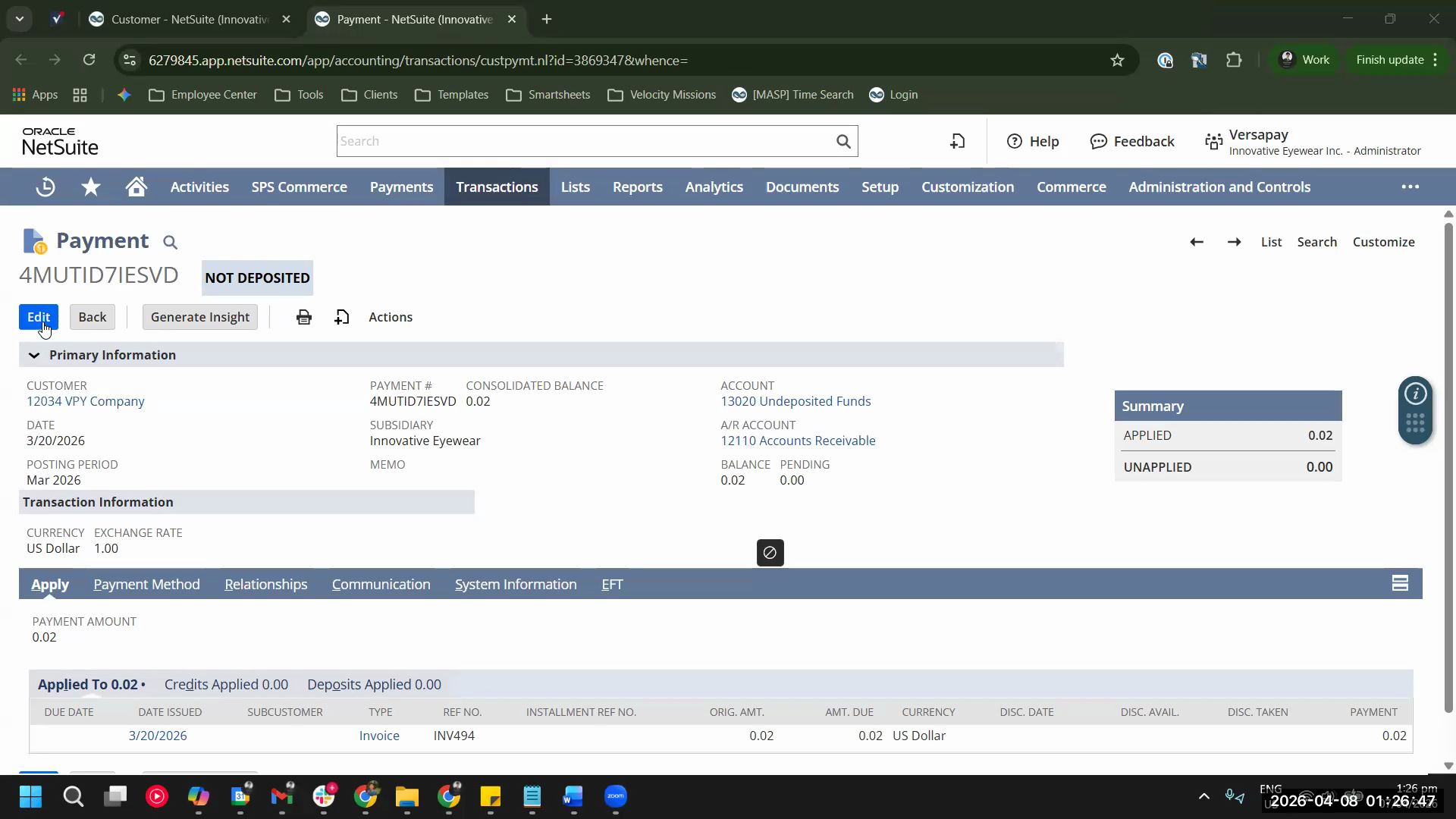 Payment record showing the Applied/Unapplied state after the refund is initiated. The unapplied balance should match the refund amount issued.
E. Item Receipt against the Return Authorization
Once goods are physically in the warehouse (or if doing receive-first sequence, this step precedes C and D):
- In NetSuite, open the Return Authorization created in Step B.
- Click Receive (Actions > Receive Items). NetSuite creates an Item Receipt linked to the RA.
- Confirm quantities received match what was logged in Step A.
- Inventory disposition per item condition:
- Sealed / unopened → return to Location 1 (main warehouse), sellable status
- Opened / customer-used → place in a hold location; Joaquin decides disposition (repackage, write off, demo unit, etc.)
- Save the Item Receipt.
F. Credit Memo from the Return Authorization → closes the Invoice
The RMA must generate a Credit Memo that offsets the open invoice balance created when you unapplied the deposit in Step C.
- Open the Return Authorization.
- Click Actions > Create Credit Memo. NetSuite creates a Credit Memo linked to the RA.
- Verify the Credit Memo amount matches the refund amount (for full return: matches the full invoice; for partial: matches the partial amount).
- On the Credit Memo, go to the Apply tab and apply it to the open invoice (e.g., INV520).
- Save. Net effect:
- Invoice closed by Credit Memo
- Deposit refunded to customer’s card via VersaPay
- Returned inventory back in stock (sellable portion)
- Customer balance: $0
G. Verify — reconciliation checklist
Run these checks the next business day after saving the Customer Refund:
- NetSuite — Customer balance: Open the customer record. Balance should be $0.00. Outstanding A/R: $0.
- NetSuite — Invoice status: Invoice should show Paid In Full or Closed (not Open).
- VersaPay Supplier Portal — Payments page: Log into
secure.versapay.com. Go to Payments. Find the original deposit. A corresponding refund record should appear. Status: Completed (may take until next business day). - Zentac (Finance & Payouts): The refund will appear as a negative payout in the Finance & Payouts section. Reconciliation runs every 4 hours; complete by approximately 10 AM the next morning.
- NetSuite — Settlement & Fee Report: Navigate to the VersaPay tab > Settlement & Fee Report. The refund should appear as a debit against the settlement for the settlement date.
- Item Receipt confirmed: Item Receipt record exists and inventory counts updated at correct locations.
- Credit Memo applied: Credit Memo linked to RA and applied to the invoice.
Worked example — Adolph Optical Service
| Field | Value |
|---|---|
| Customer | Adolph Optical Service (ID 12847) |
| Sales Order | SO598 — Vision Expo Armor Jumper Kit, 4/17/26 |
| Invoice | INV520 |
| Customer Deposit | 648S4ZFGCMUI — $799, credit card via VersaPay, 4/20/26 |
| Deposit Application | DEPA03 — applied 4/21/26 to INV520 |
| Item Fulfillment | IF314 — shipped 4/21/26 |
| Return received | 6/4/26 |
| Items returned | LCD008-10 Armor ×12 (9 sealed, 3 opened); LCD008-BR Boosters ×8; LCD008-PB Solar Power Bank ×2; LCD008-BT7 Counter Display ×1 |
| Refund decision | Full refund — $799 (all items returned) |
| Refund sequence used | Receive-first (goods arrived same day as decision) |
Step-by-step for Adolph:
- A — Warehouse receives and counts all items 6/4/26. Reports 9 sealed + 3 opened Armors to Joaquin. Full refund ($799) approved.
- B — Return Authorization created from SO598 (all 4 lines: 12 Armor, 8 Boosters, 2 Power Banks, 1 Counter Display).
- E — Item Receipt created against the Return Authorization. All items received to Biscayne as sellable (Joaquin’s disposition call, 6/4/26); the 3 opened units are segregated physically for inspection but not split in NetSuite.
- C — Open INV520. Find DEPA03. Edit. Set applied amount to $0.00. Save. INV520 reopens A/R for $799. Deposit 648S4ZFGCMUI shows $799 unapplied.
- D — Transactions > Customers > Issue Customer Refund. Customer = Adolph Optical Service. Apply tab: select 648S4ZFGCMUI for $799. Refund Method: Pay by Reference (PN auto-filled), VersaPay profile, Handling Mode = Process. Save.
- F — Credit Memo from Return Authorization, $799, applied to INV520. INV520 closes.
- G — Next morning: verify Adolph balance $0, INV520 Paid In Full, refund visible in VersaPay Payments page, Zentac Finance & Payouts shows -$799 on the payout.
Gotchas
G1 — Check the posting period FIRST
If the posting period for the invoice date or deposit date is closed, NetSuite will block you from editing the Deposit Application or saving the Customer Refund. Check Setup > Accounting > Accounting Periods before starting. If the period is closed, ask Oswald to re-open it temporarily.
G2 — Edit via the invoice, NOT the Customer Deposit
Attempting to edit the Customer Deposit record directly to unapply it will fail. The deposit record locks once applied. The correct path is: Invoice → Deposit Application link → Edit.
G3 — Unapply before issuing the refund
If you try to Issue Customer Refund before unapplying the deposit, the Apply tab will show Credits/Deposits = $0.00 and there is nothing to apply. No refund can be issued until the deposit has an unapplied balance. Step C must precede Step D.
G4 — Partial refunds: unapply only the refund amount
For a partial refund, do not unapply the full deposit. In Step C, reduce the applied amount by only the refund amount — leave the rest applied. Example: $799 paid, returning items worth $500 → unapply $500, leave $299 applied. Issue $500 refund. The Credit Memo for $500 closes the reopened $500 of A/R; the $299 still applied covers the goods the customer is keeping. Invoice fully closed, customer net out-of-pocket $299.
G5 — Refund can be issued before goods arrive
This is a policy choice. VersaPay support confirmed you can issue the refund before the goods arrive physically, then create the RMA and credit memo once items come in. Lucyd’s default: wait for goods unless Joaquin approves early release for a trusted account.
G6 — Virtual Terminal / Gateway payments do NOT sync back to NetSuite
If a payment was originally taken through the VersaPay Gateway / Virtual Terminal (not the standard VersaPay payment link), a refund issued here will not automatically sync to NetSuite. Emergency use only. Escalate to Oswald before touching the Gateway sub-account.
G7 — Do not close batches manually
If you are in the VersaPay Gateway portal during this process, do not click Manual Batch Close. Batches close automatically. Manually closing a batch causes reconciliation problems.
G8 — Settlement reconciliation timing
The Zentac Finance & Payouts portal and NetSuite Settlement & Fee Report reconcile every 4 hours. The refund may not appear until the next morning (~10 AM). Do not re-issue the refund if you don’t see it immediately — wait until the next morning’s reconciliation cycle before escalating.
Verification checklist (copy for ticket / Slack thread)
[ ] Posting period confirmed open before starting
[ ] Return received and inspected (warehouse logged condition)
[ ] Return Authorization created from SO
[ ] Refund amount approved by Joaquin (if partial)
[ ] Unapplied deposit via Invoice → Deposit Application → Edit (NOT via Customer Deposit directly)
[ ] Customer Refund saved: Pay by Reference + VersaPay profile + Handling Mode = Process
[ ] Item Receipt created against RA; inventory disposition confirmed
[ ] Credit Memo created from RA and applied to Invoice
[ ] Invoice status = Paid In Full / Closed
[ ] Customer balance = $0
[ ] VersaPay Payments page shows refund (next business day)
[ ] Zentac Finance & Payouts shows net payout adjustment (by ~10 AM next day)
Source citations
- NetSuite / VersaPay support call — May 12 2026 (Marina Rhodes): Refund procedure overview, closed billing period gotcha, B2B return / RMA scenario, partial refund mechanics, Credit Memo to close invoice, settlement reconciliation timing, Virtual Terminal emergency-only warning.
- VersaPay go-live session — Apr 7 2026 (Martin Allen Pascual): Handling Mode = Process triggers live charge/refund; safeguard — VersaPay always refunds to original payment method; refund method / Pay by Reference walk-through.
- Related SOPs: SOP 04 — VersaPay AR Collections; SOP 03 — B2B Sales Orders